Get your Amazon export
Amazon lets you download your own order history. It takes about two minutes to request and usually lands within 24 hours. You'll get a ZIP by email; drop it back here and rosegold reads it entirely in your browser.
Five steps, start to finish
Open any step for the detail.
1 Log in to your primary Amazon marketplace account
Pick the Amazon site most of your orders live on, then open its data-request page with the button below. Sign in if asked; Amazon sometimes re-checks your password first.
Shopping across more than one site? Choose the one you use most.
Opens in a new tab, so this guide stays where it is.
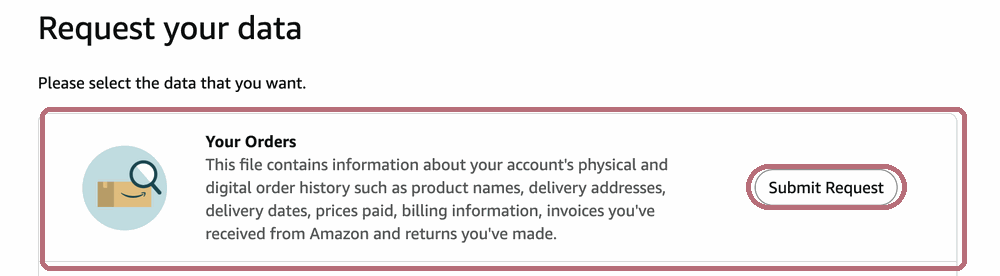
2 Request "Your Orders"
On "Request your data", find the Your Orders tile and click its Submit Request button. That's the only one you need. Nothing else.
3 Check your inbox and confirm your request
Amazon emails you a confirmation link (from an amazon address). Click Confirm Data Request to set it off.
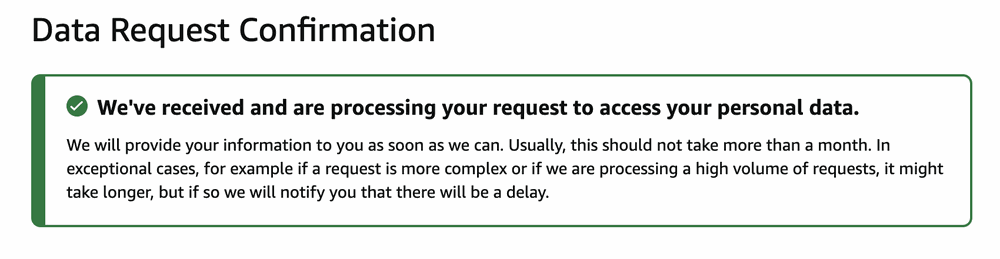
Heads-up: that confirmation link expires after 5 days, so confirm it soon. Once you do, you'll see Amazon's "we're processing your request" page.
4 Wait for your data export to arrive
Usually it arrives within 24 hours (Amazon says it can take up to a month). When it's ready, download Your Orders.zip. The download links stay live for 90 days.
5 Come back and upload your data export
Upload the ZIP exactly as Amazon sent it. Don't unzip, open, or re-save it. rosegold checks the file is the original one Amazon produced, so an untouched ZIP verifies cleanly.
Upload my exportAlready have your export? Upload my export